
Apparel and models · Image editor
Change clothing colour with a mask
Recolour the complete long-sleeve top to blue through a selected area. Retain its cut and folds while protecting the face, hands, trousers and background.
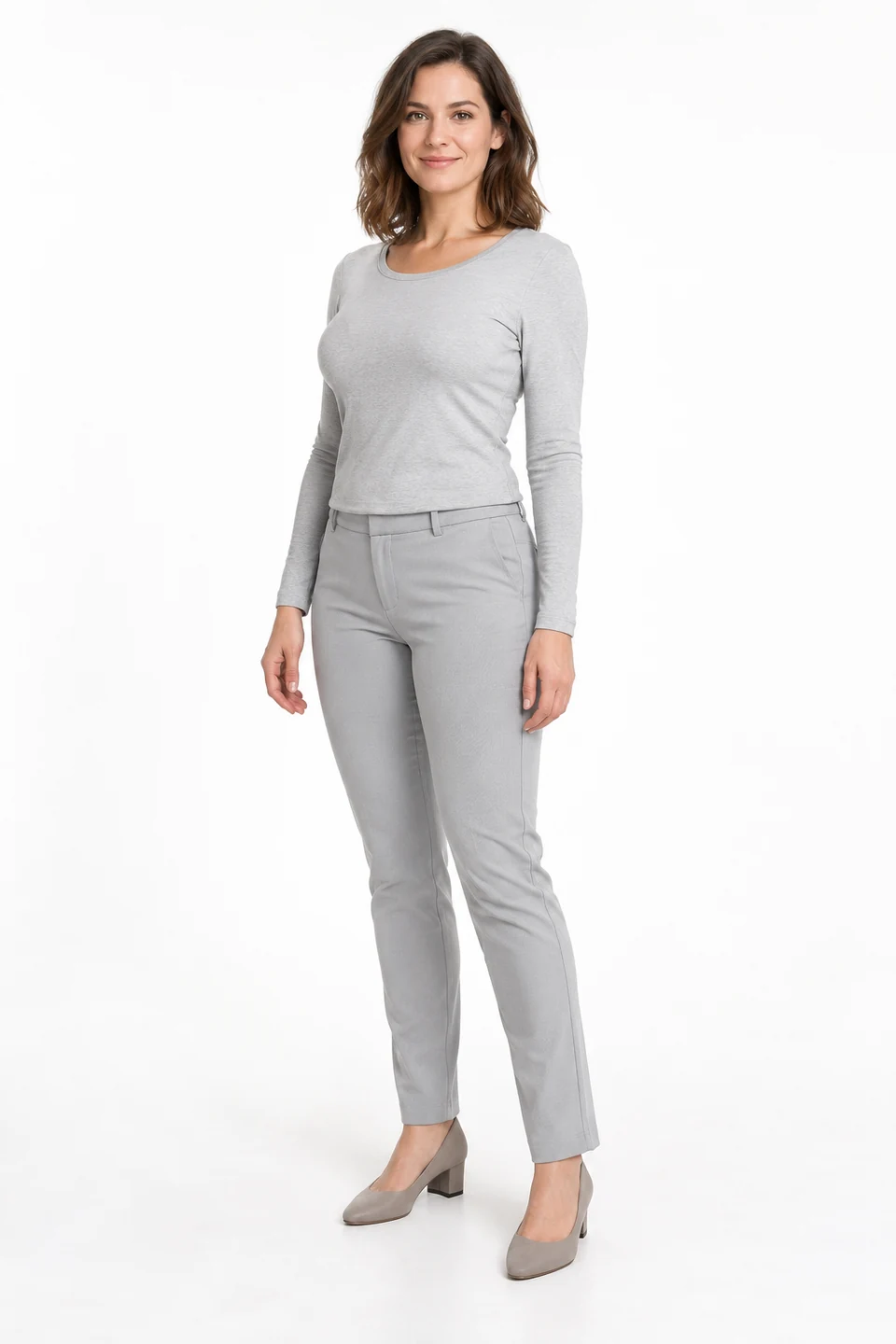
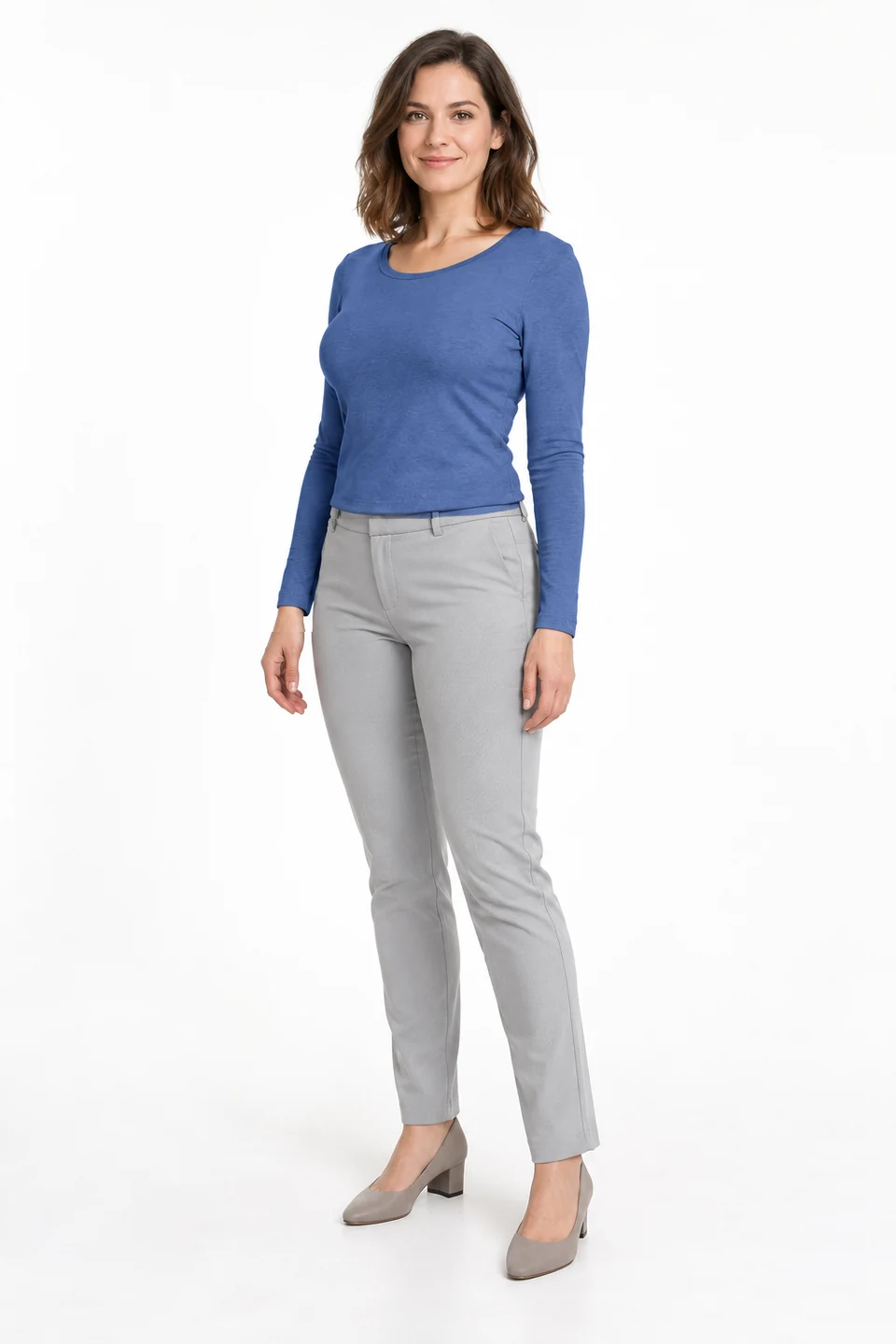
Demo case: the source images are AI-generated and the result is AI-processed. Use your own product and inspect details before publishing.
Format: 2:3
The task and result
The source shows a model in a grey outfit. The editor changes the top’s colour without replacing it with a different garment. The selection includes the torso, sleeves, neckline and cuffs; the instruction protects any skin and background inside it. This is a visual colour variant, not proof of an available SKU.
How to repeat it
- Open the editor and upload the source photo.
- Select the complete top, including inner sleeve edges, neckline and cuffs.
- Request muted cobalt blue while retaining the cut and shading.
- Check for grey strips and accidentally recoloured skin or trousers.
What to check
- An incomplete mask leaves grey sleeve strips; inspect the selection edges.
- The top should retain its original neckline and fold directions.
- Screen colour is not a measurement of the real fabric shade.
Description to reuse
Recolour the complete gray long-sleeve shirt to muted cobalt blue, including its collar, cuffs and every part of both sleeves. Preserve the exact shirt construction, folds and shadows. Do not recolour any trousers, skin, hair or white background that falls inside the broad selection. Keep all unselected pixels unchanged.
Questions about this case
Why select the inner sleeve edge?
Areas outside the mask are preserved. Unselected fabric may remain its original colour.
More things to try
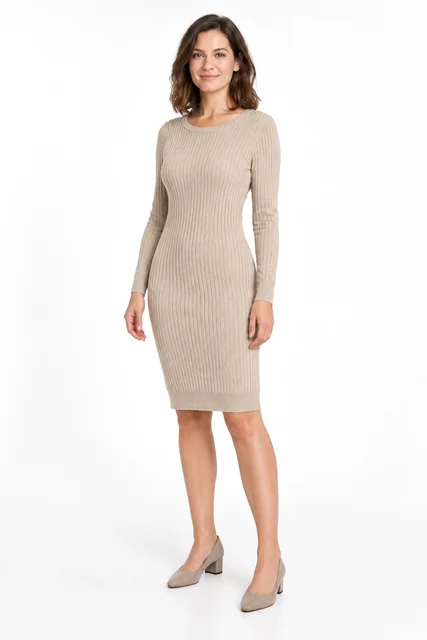
Knitted dress on a model
Try a beige knitted dress from a flat lay on an adult AI model. This task needs two images: the garment and the person. Compare ribbing, neckline, sleeves and facial appearance.
Explore this case →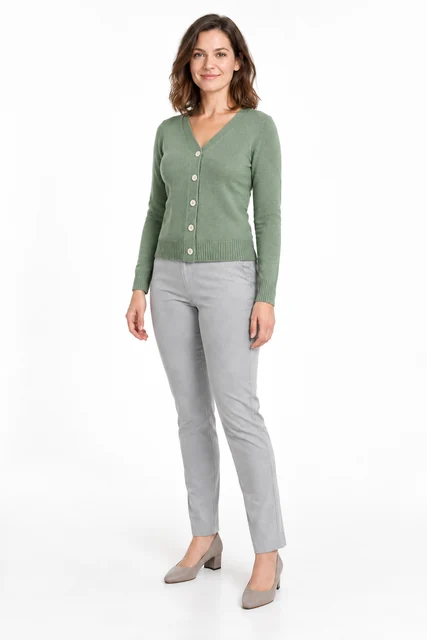
Change a person into a cardigan
Change a grey top to a sage cardigan using a separate garment image. This accepted example uses garment try-on with a cardigan, a model and instructions for the outfit to retain.
Explore this case →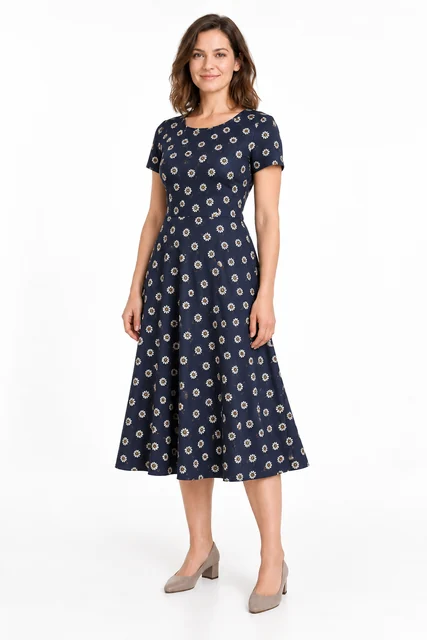
Try on a patterned dress
Try a navy daisy-print dress on an adult AI model. Check print scale, short sleeves, the waist seam and flared skirt.
Explore this case →